
Connectivity
Troubleshooting Guide
Is Your Heat Pump Really Offline?
If your MasterTherm smartphone app is showing your heat pump as offline, don't worry. In the vast majority of cases, your heat pump is working perfectly fine and continuing to heat your home. The issue is almost always with the internet connection between your heat pump and the app, not with the heat pump itself.
How the System Works
Understanding how your heat pump connects to your phone helps explain why you might see an 'offline' message:
1. Your Heat Pump connects to your home broadband (via Wi-Fi or ethernet cable)
2. Your Broadband sends the heat pump data to a secure cloud server on the internet
3. The Cloud Server (managed by MasterTherm) stores and processes your heat pump data
4. Your Smartphone App reads data from the cloud server to show you what your heat pump is doing
Important: When you see 'offline' in the app, it means the data path between your heat pump and the cloud has been interrupted. The MasterTherm cloud service is monitored continuously and is highly reliable. The interruption is almost always caused by your home broadband connection.
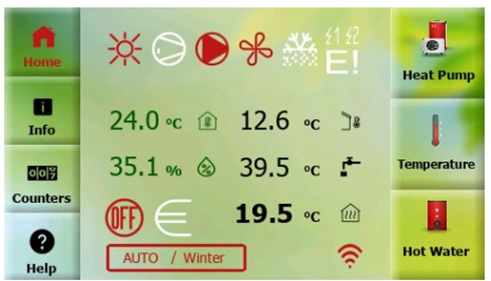
The MasterTherm pGDx Display
Troubleshooting Steps
Please work through these steps in order before contacting Thermal Earth for support:
Step 1: Check Your Internet Connection*
• Can other devices in your home connect to the internet?
• Try loading a website on your phone or computer whilst connected to your home Wi-Fi
• If the internet isn't working for any devices, contact your broadband provider
*If you have HyperOptic in your home please see HyperOptic section.
Step 2: Restart Your Broadband Router
This is the most effective fix and solves the problem in most cases:
1. Locate your broadband router (the box provided by your internet company)
2. Turn it off at the plug or press the power button
3. Wait 30 seconds
4. Turn the router back on
5. Wait 2-3 minutes for your internet to fully reconnect, then check the app again
Step 3: Restart the Heat Pump Controller (pGDx)
If restarting your router didn't help, restart the heat pump's display controller:
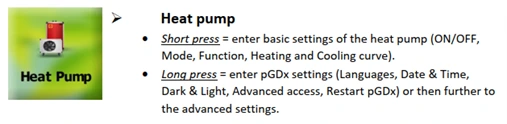
6. Long press the Heat Pump button on the pGDx touchscreen
7. Select Restart pGDx
8. Confirm by pressing RESTART
9. Wait for the display to restart (approximately 1-2 minutes), then check the app
Note: Restarting the pGDx controller does not affect your heating. Your heat pump will continue to operate normally throughout this process.
Step 4: Try Wi-Fi Instead of Ethernet (or Vice Versa)
Your heat pump can connect to the internet via either an ethernet cable (LAN) or Wi-Fi. If one method isn't working, try switching to the other:
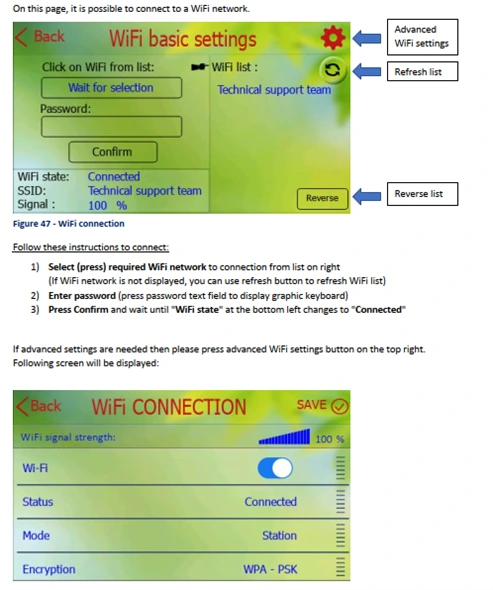
To Connect via Wi-Fi:
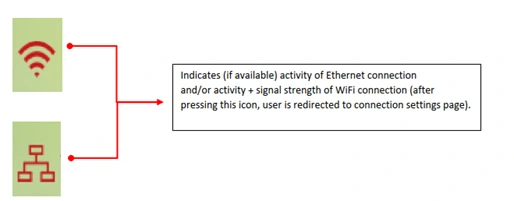
1. On the pGDx home screen, tap the network icon (shows Wi-Fi or ethernet symbol)
2. Tap Wi-Fi
3. Select your home Wi-Fi network from the list
4. Enter your Wi-Fi password
5. Press Confirm and wait for 'Connected' status
To Connect via Ethernet:
6. Ensure an ethernet cable is connected from your router to the heat pump controller
7. On the pGDx home screen, tap the network icon
8. Tap Ethernet - the connection should configure automatically (DHCP)
Tip: If ethernet isn't working (perhaps due to a faulty cable or router port), Wi-Fi is often a quick and reliable alternative. Wi-Fi also gives you more flexibility in where your heat pump equipment can be located.
Step 5: Check Network Connection Status on the pGDx
The pGDx display shows your current connection status:
• Wi-Fi symbol with signal bars = Connected via Wi-Fi (more bars = stronger signal)
• Ethernet/network symbol = Connected via ethernet cable
• Globe with cross = No internet connection
Tap the network icon to access network settings if needed.
Homes with HyperOptic
If your home has a HyperOptic and you a separate broadband service for your property. You may want to consider connecting your pGDx to your home WiFi instead of HyperOptic (see Step 4) and see if that re-establishes connection.
Still Need Help?
If you've worked through all the steps above and your heat pump still shows as offline in the app, please contact Thermal Earth. When you call, it helps if you can tell us:
• What connection type your heat pump is using (Wi-Fi or ethernet)
• What network icon/status is shown on the pGDx display
• Whether your other devices can access the internet
• Which troubleshooting steps you've already tried
Contact Thermal Earth
Phone: 01269 833100
Email: info@thermalearth.co.uk
Website: www.thermalearth.co.uk
Quick Reference Summary
Restart your broadband router (wait 30 seconds with it off)
Restart pGDx controller (long press Heat Pump > Restart pGDx)
Switch to Wi-Fi connection (tap network icon > Wi-Fi)
Consider a Wi-Fi extender or switch to ethernet connection